How to configure the system to generate kernel memory dump files
Published
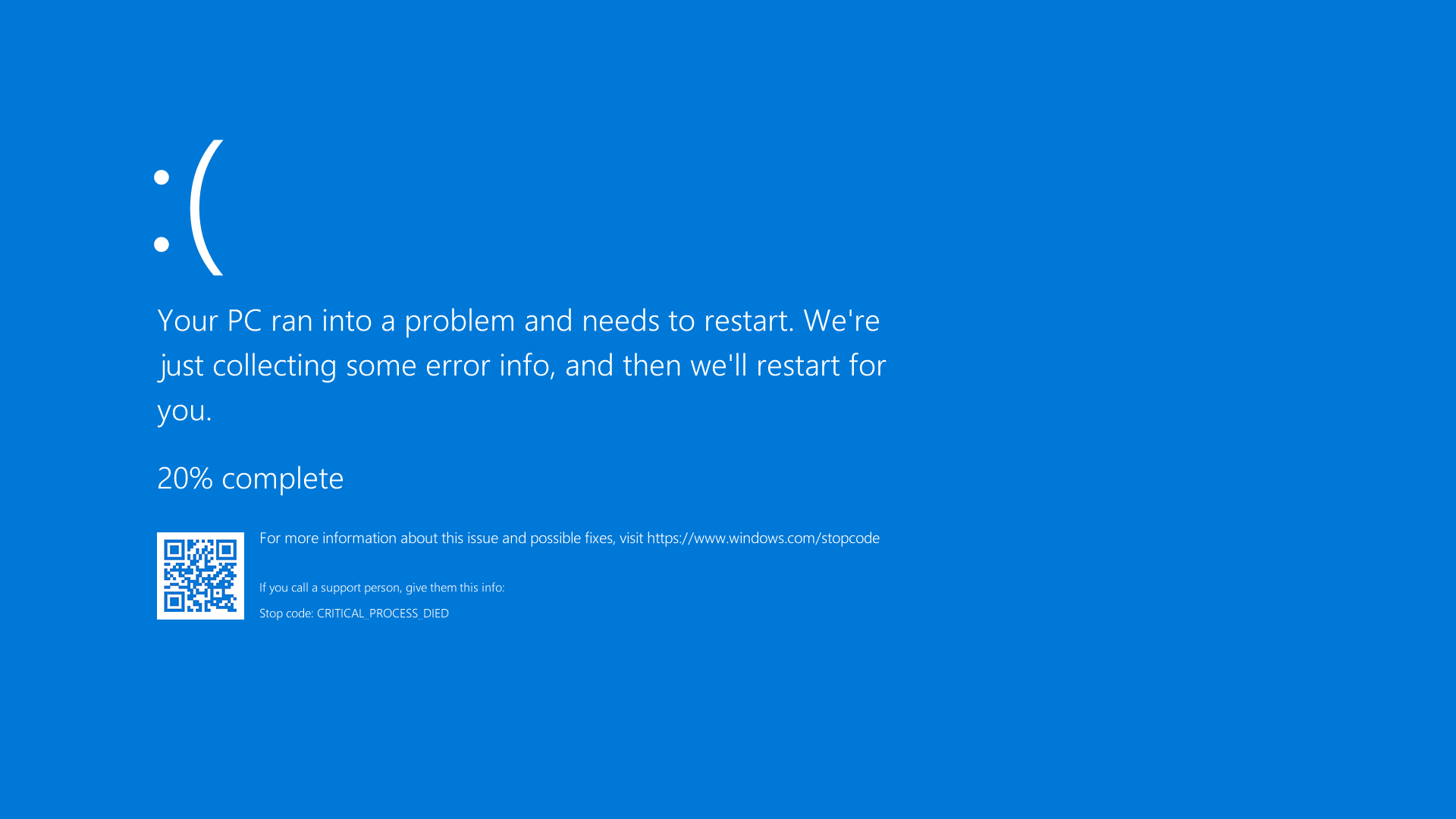
In some cases, to recover from BSOD, GameGuard anti-cheat developers may request to provide a complete kernel memory dump, which is written to C:\Windows\MEMORY.DMP
This request is due to the fact that a small memory dump, which is chosen in the system by default and is created as small files in the C:\Windows\Minidump folder, may contain incomplete technical information on the problem.
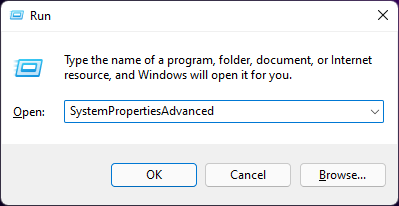
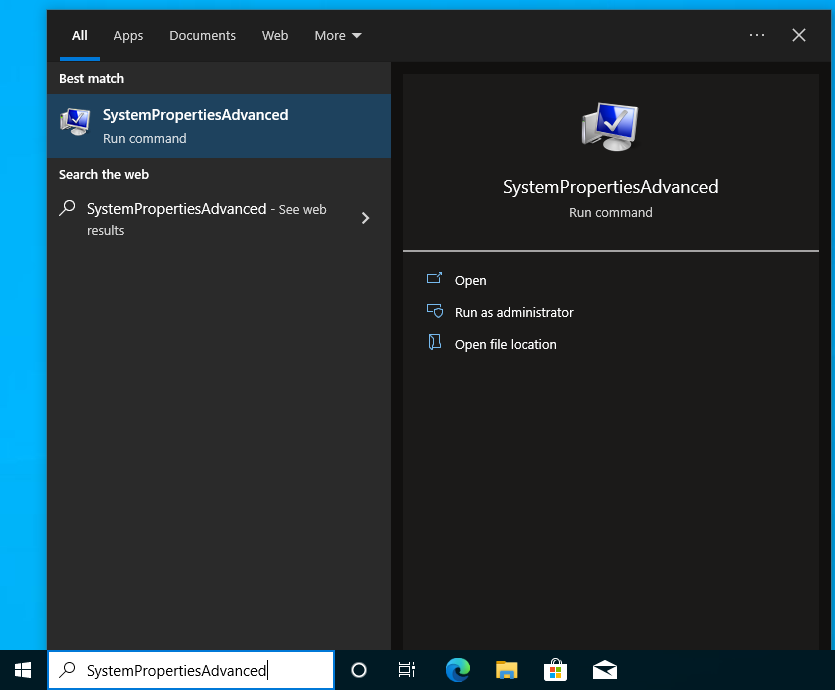
In order to configure the system to create a kernel memory dump, press the Windows key on your keyboard to open the search menu or use the Win+R shortcut, and in the open Run dialog box, type SystemPropertiesAdvanced and hit Enter.
After that, navigate to ‘Settings’ in the bottom section ‘Startup and Recovery’ and select ‘Kernel Memory Dump’ in the ‘Write debugging information’ drop-down list.
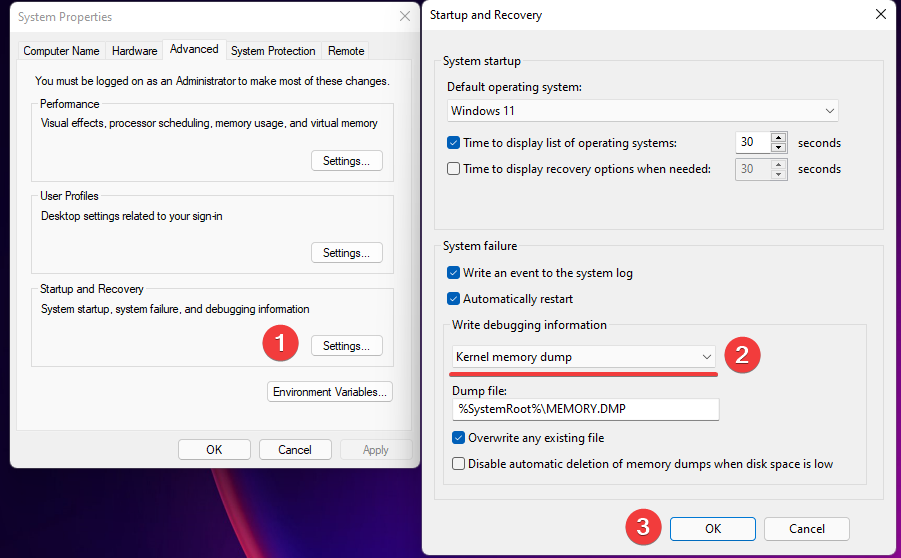
Once all the steps are completed, click OK and reboot the system via the ‘Start menu’.
After all is done, if the blue screen appears again, follow these instructions:
1. Wait for your PC to restart automatically.
2. Upload the dump file (C:\Windows\MEMORY.DMP) to any file-sharing service.
3. Send a link to the dump file to our technical support staff.
After analyzing the dump, the GameGuard anti-cheat team will provide further instructions for solving the problem so that you can again enjoy playing on FASTCUP.NET comfortably and safely!